How to swap chains using our ONFTs
A step-by-step guide

Introduction
Here is a step-by-step overview of how to complete a cross chain swap using our ONFTs.
We’d also like to announce that everyone who completes a cross-chain swap will get an automatic discount weapon mint whitelist. Each account can only be awarded 1 whitelist regardless of additional swaps and regardless of chain direction. Whitelists are automatically awarded after a daily snapshot taken at 2am UTC.
Reminder: Whether your assets are on Polygon or zkSync, your normal usage in the game will not be affected.
1. Visit our site and prep your assets
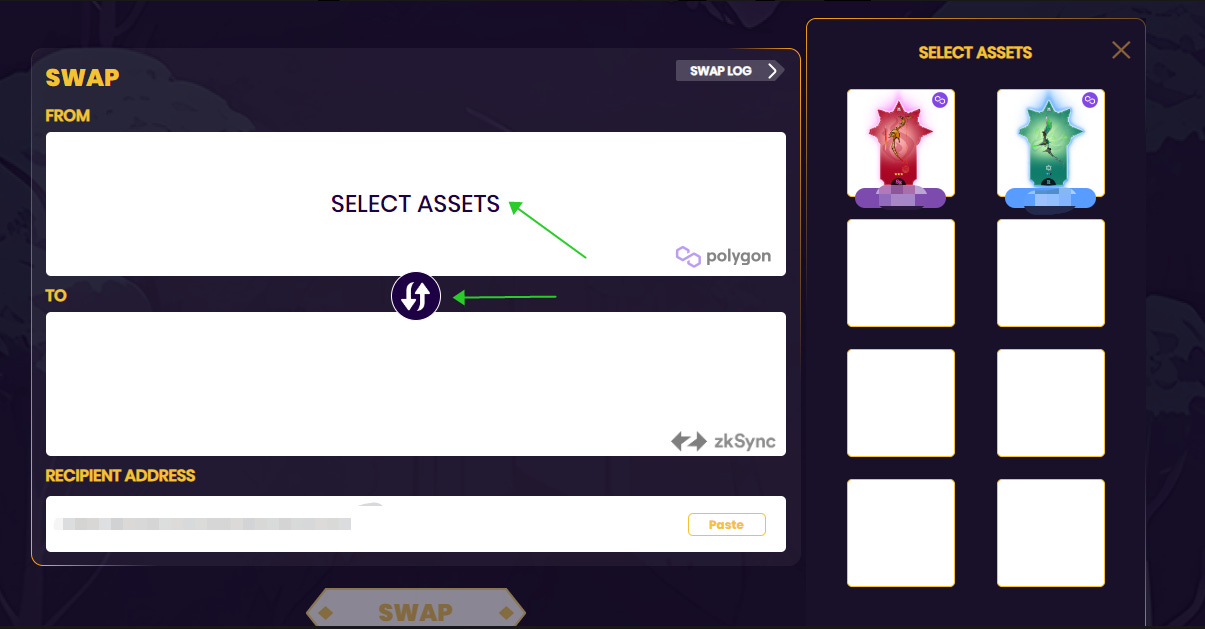
Visit the swap page at https://www.tearingspaces.com/swap. Click “Select Assets” to open the asset selection popup (only weapons are supported for now).
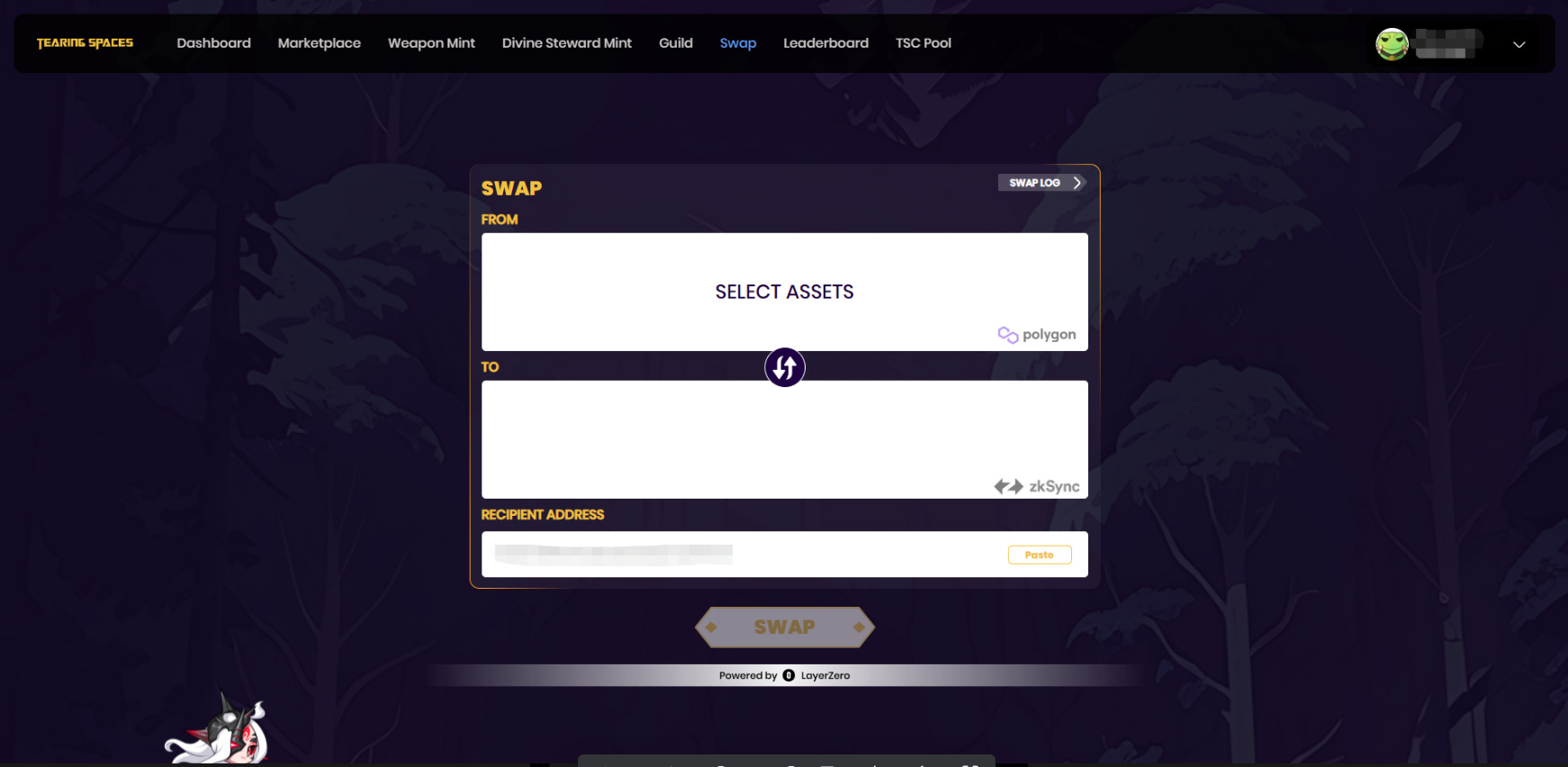
Given this is only our second chain, we do not have chain selection atm, however you can click the 🔁 button to toggle Polygon → zkSync or zkSync → Polygon swaps.
2. Prepare the swap
When you have chosen your assets, you need to enter the recipient address (default is the wallet address associated with your login account). Once assets to be swapped and the recipient address are confirmed, click “Swap” to initiate the swap.
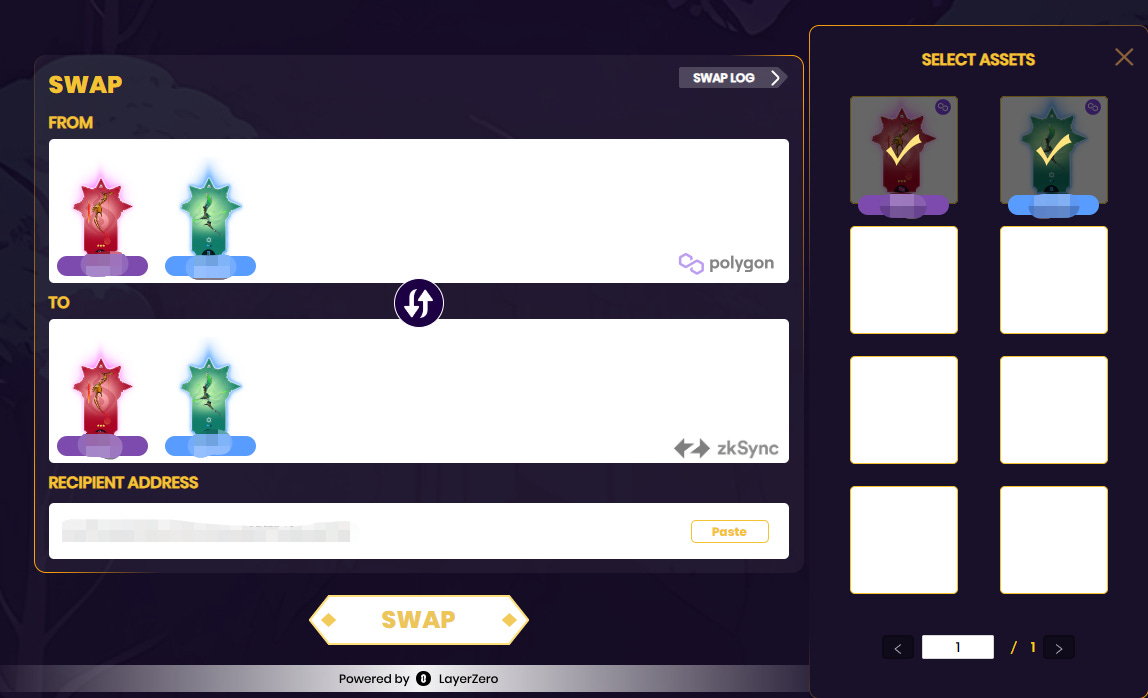
Note: Depending on what network currently active in your wallet, you may need to switch networks. You may also need to add networks if you haven’t before.
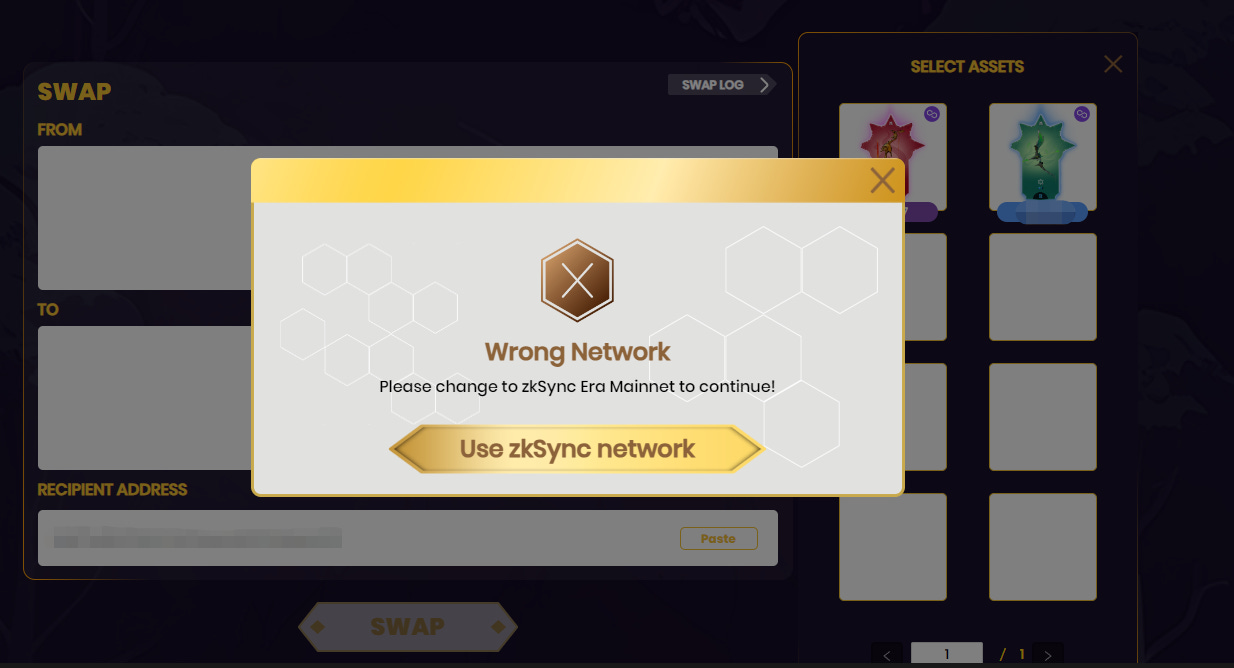
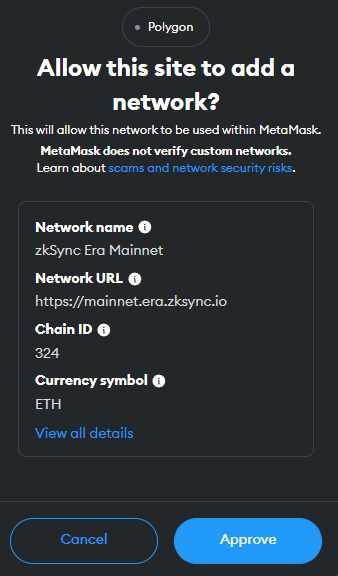
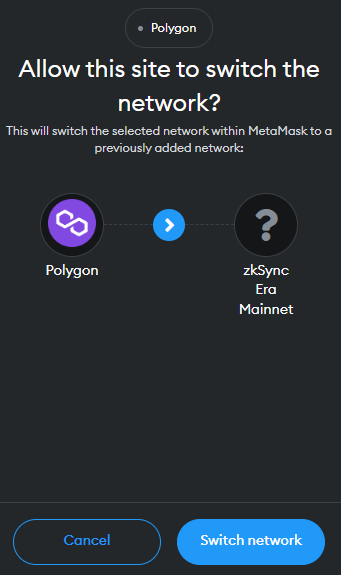
3. Approve and complete the swap
Approve the swap in your wallet and complete the swap transaction. We recommend having at least 15 MATIC (if from Polygon) or 0.0005 ETH (if from zkSync) in your wallet.
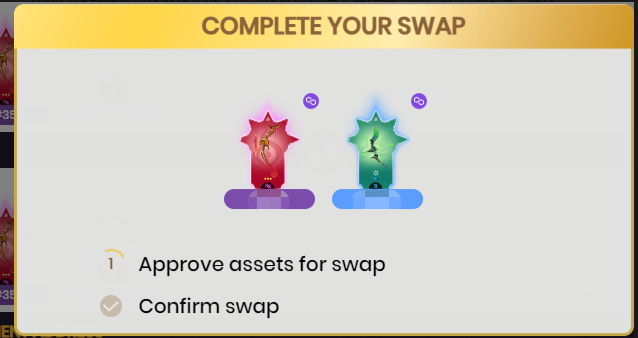
A popup will appear after the confirmed swap is successful. You can view the transaction on the source chain by clicking the open transaction button (circled).
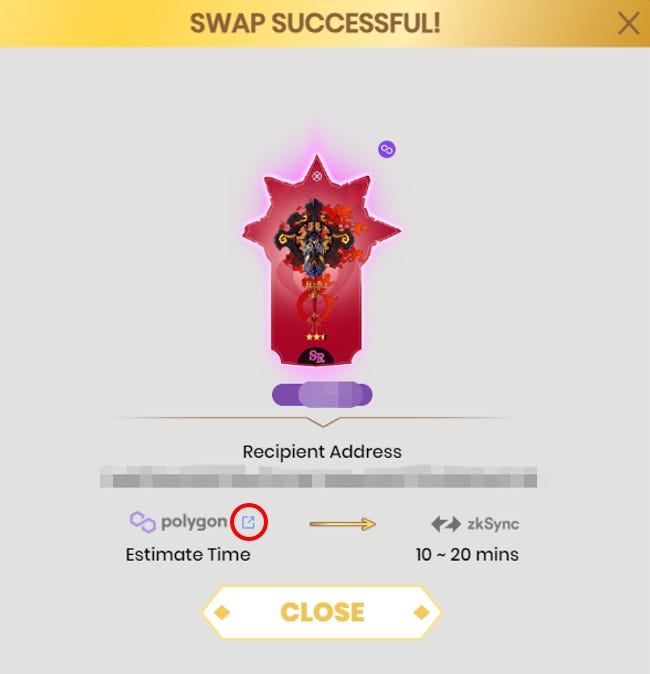
Note: Cross-chain transactions require some waiting time - approximately 10-20mins from Polygon to zkSync and around 5mins from zkSync to Polygon.
4. (Optional) View your swap log
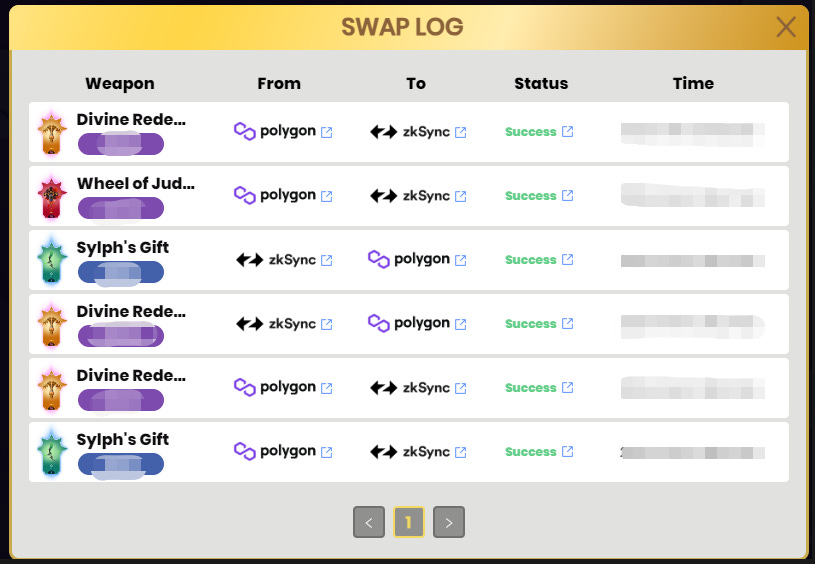
When at the main swap page, click “Swap Log” to view swap history and status
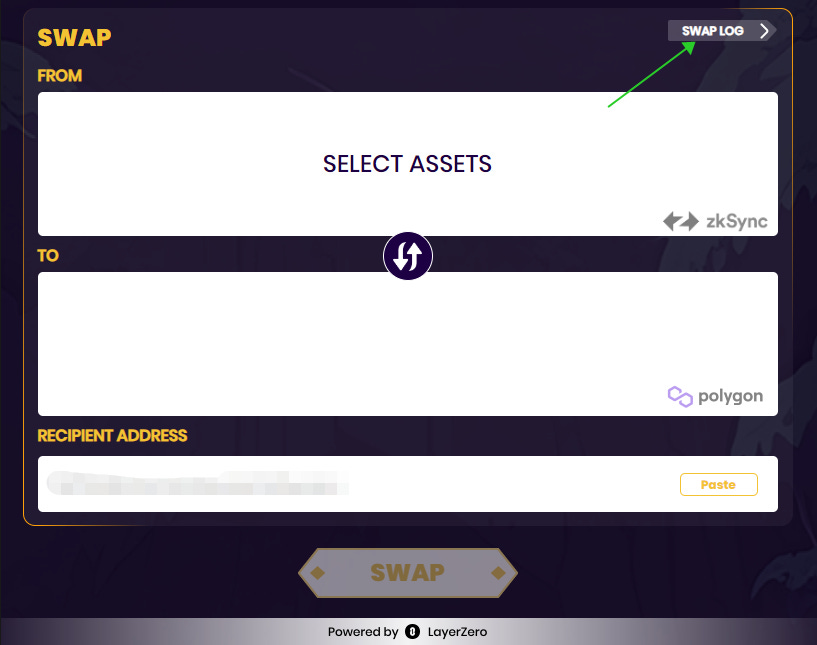
Here you can view a history of all your swaps. You can see what chains were involved as well as status. "Success" indicates a successful swap, "Failed" indicates a failed attempt, "Pending" indicates that the swap is ongoing.
Depending on the swap stage, you can expand more info on transactions on the source chain, destination chain as well as on LayerZero using the open transaction buttons.